Drawing Item
Overview: A Drawing Item is a line item within a drawing that lists material by product code with its associated description, release status, current estimate, and quantity open. This data is derived from the material takeoff process and input into the Drawing Item File. CMMS then generates material list by drawing. Materials are then released by Drawing Item during the material release process.
Topics:
6) Item Search without Drawing Number
Process:
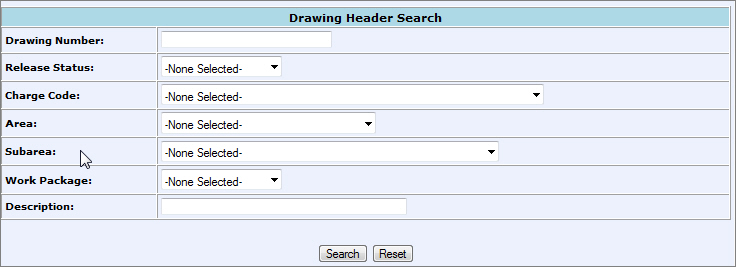
1. From the CMMS Menu > Drawings > Drawing Search.
2. Enter in all known search criteria:
Drawing Number: number associated with the IFC Drawing or the IFA Drawing
Release Status: none, partial, complete
Charge Code: identifies an account to which a product is to be charged against
Area: number that identifies a locations within a project
Subarea: number that identifies a part of a location within a project
Work Package:
Description: a short description of the drawing
*Partial searches are allowed. Use '%' before the value to find Drawings that contain the value anywhere in the field.
Click Search.
3. A list of search results will populate.
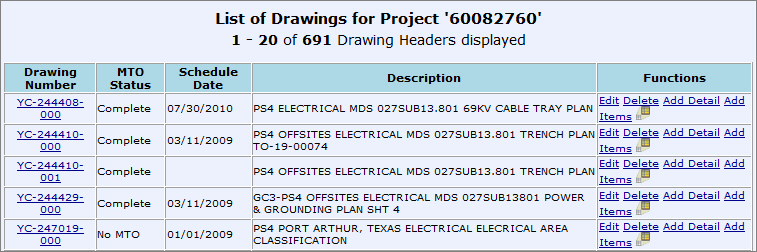
1. Click on the Add Items hyperlink in the "Functions" column on the Drawing Header Search Results screen to add items to the Drawing Header.

2. Fill in all possible search criteria to search the Project Catalog for the item.
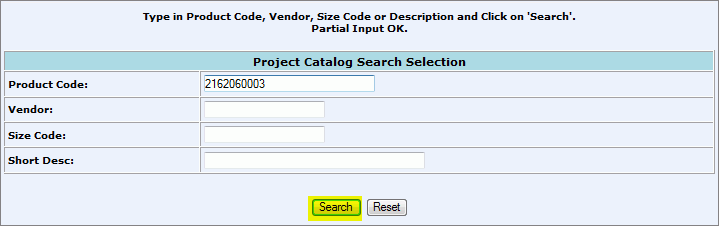
Click Search.
3. Select the checkbox in the "Select All" column of the item you want to add. Fill in the quantity and the tag number if desired.
*You can check one or all "Select All" checkboxes to add more then one item at a time.
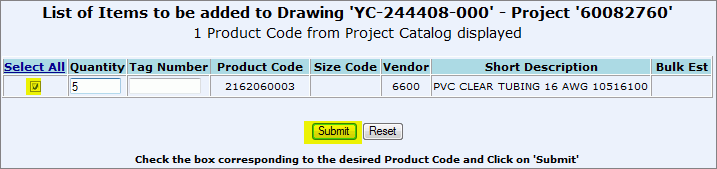
Click Submit.
4. The system will return you to the Project Catalog Search Selection Screen. Either continue to add items to the drawing or search for the drawing again to view the item added.
1. Select the Drawing Number hyperlink from the "Drawing Number" column on the Drawing Header Search Results screen.

2. A list of all items on the drawing will appear:
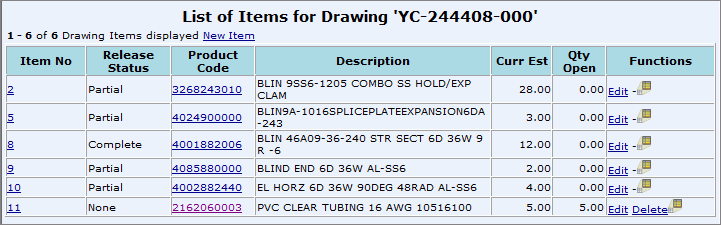
Item No: hyperlink to edit item
Release Status: Partial, Complete or None - status of items release from the drawing
Product Code: unique number that identifies material in the project product catalog.
Description: a short description of the item
Curr Est: Current quantity estimated to fulfill drawing item
Qty Open: Quantity open on drawing
Functions: hyperlinks to edit, delete, or view item.
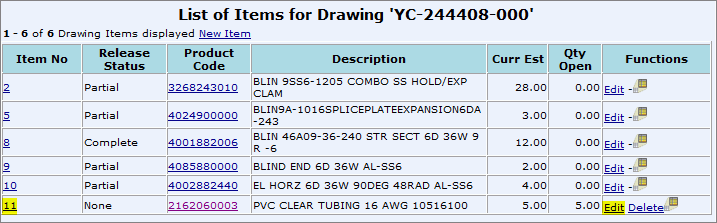
1. Find the item that you want to edit from the "List of Items" screen. Click Edit under the "Functions" column.
*You can also access the edit screen by clicking on the Item number under the "Item No" column.
2. Make any changes to the drawing Item.
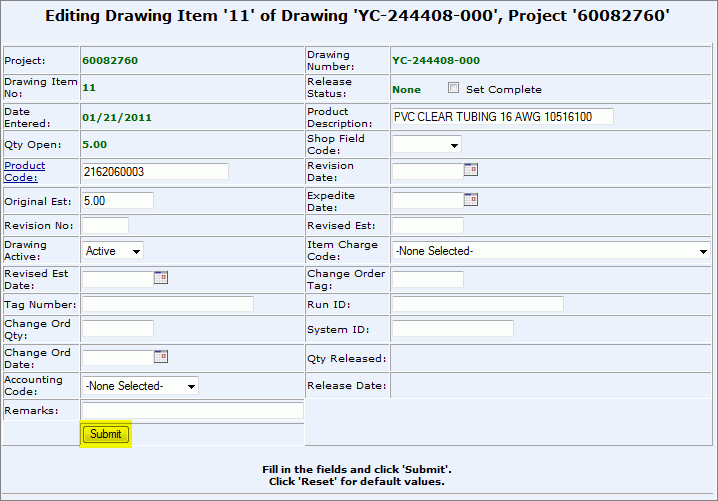
3. Click Submit.
1. Find the item that you want to delete from the "List of Items" screen. Click Delete under the "Functions" column.
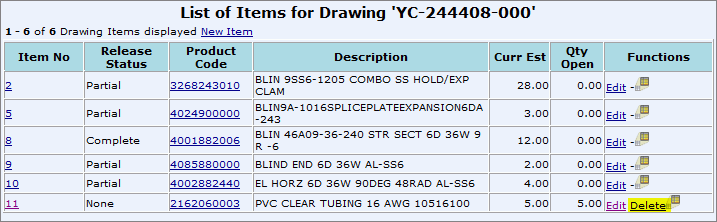
2. Click Confirm or Cancel.

6) Item Search without Drawing Number
1. An item search can be conducted without knowing the drawing number. From the CMMS Menu > Drawing > Item Search.
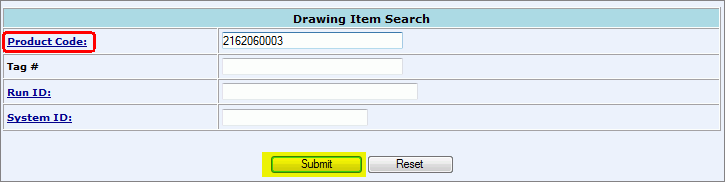
Search by Product Code, Tag #, Run ID, or System ID. If you click on the Product Code hyperlink you can search various ways:
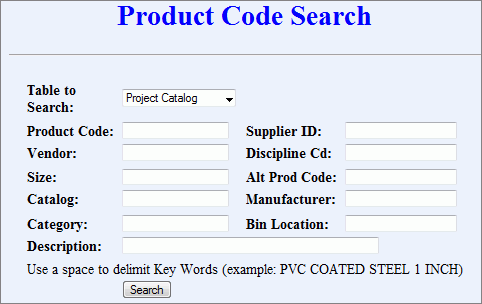
Click Search.
2. All Items within the project that match the search criteria will populate. Changes can also be made from this screen.

Click on: