Create a New
Purchase Order
To order material from a Vendor you need to create
a new Purchase Order; New Store, Project, or Job Type PO. The Purchase
Order menu is located either on the Reports
Menu -> Purchasing -> New PO
or under Operations -> Purchasing Routines ->
Purchase Order Add.
STEPS for CREATING
A PURCHASE ORDER
Select Type of P.O.: Before
entering a new Purchase Order you must choose which Type or Category
of Purchase Order you want to create.
Store P.O.: Select when you want to create
a new Purchase Order for a single customer, i.e. not for a Project
or for a specific Job. Please see #4 below for specific instructions
on enter a New Purchase Order.
Project P.O.: Select the appropriate
Project from the drop down menu. Project
P.O. link is only used for creating purchase orders for a specific
CMMS project.

Job P.O.: Enter a Valid Job Number.
Once you have chosen the type of Purchase Order you are creating, select
Submit
and you will be taken to the Purchase
Order Header screen.
Input
Purchase Order Header Information:
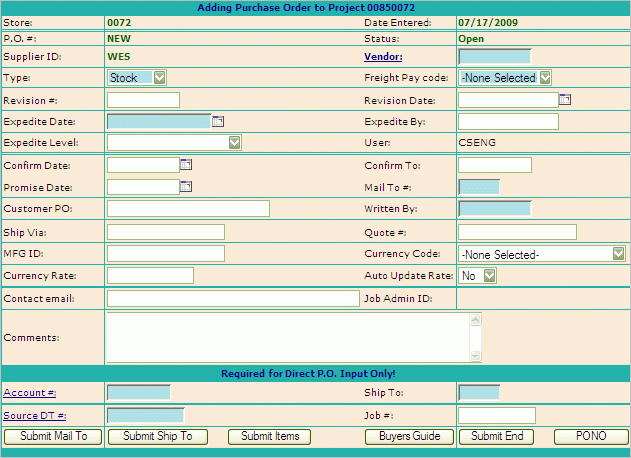
required
PO Header fields for ALL Purchase Orders: (All
fields highlighted in blue)
Type: Select
the purchase order type from the drop down selection box; normally
stock or direct. If you select P.O. type buyout, this P.O. will
have no effect on stock quantity on hand when the material is
received. P.O. type of buyout should only be used for tickets
that have a source code of ‘BO’. Source code of BO (buyout) on
delivery tickets will not reduce inventory Quantity on Hand when
the item is shipped.
Vendor: Click
on this link to search for the correct accounts payable vendor
number. A pop-up search screen will appear. Enter a vendor number
or partial mail to name and search for the proper purchase order
mail to address. Click on paste when you find the correct name
and address. The Vendor number and Mail To # will be copied to
the screen. Note that Vendor Number designates the payment remit
to address and Mail To # identifies the purchase order mailing
address.
Freight Pay
Code: Select from the drop down box whether the Customer
(us) or the Vendor pays the freight. Normally for stock orders
the vendor would pay freight if we have met minimum order requirements.
Expedite Date:
Enter the date you want the P.O. to be expedited if it has
not yet been received. All dates are entered into the system as
mm/dd/yyyy format.
Mail To #:
If the Vendor number above is entered without using the
Vendor Search the Mail To will need to be manually entered. This
is the address for which this order will be shipped to.
Written By:
The purchasers ID number.
Enter optional
PO Header fields as necessary:
Revision #:
If PO has been revised enter the revision #.
Revision Date:
entered along with revision date.
Expedite By:
ID of the person responsible for expediting this order.
Confirm Date:
The date the order was confirmed to the manufacturer.
Confirm To:
Who confirmed the order.
Promise Date:
The manufacturer’s promised delivery date
Customer
PO: Our customer’s order number if for a specific customer
order.
Ship
Via: Designate how you want the order shipped. Most
frequent used are listed below.
O/T - our truck
UPS (red/blue)
BESTWAY
HOT SHOT
WILL CALL or W/C
Quote #: Manufacturer’s
quote number if available.
MFG ID:
Currency Code:
Currency Rate:
Auto Update
(currency) Rate:
Contact Email
Address:
(Header) Comments:
Internal P.O. comments. These do not print on the P.O. To
have comments print on the P.O., see the section below on Making
Purchase Order Changes.
Required
Direct (to Customer) PO Header Information:

Account # and Ship To: You
can search and paste this data by selecting the Account # link. It supplies the shipping
address for customer direct shipments. This entry is only required
if no Source DT # is supplied. If a Source DT # is provided
all the necessary information will be pulled from the DT.
Source DT#: If you know the Source
DT # enter it here. This number identifies the customer
delivery ticket to pull shipping and line item information from.
You can also search the DT # by selecting the Source DT # link.
Job #: If Direct PO is for a Job
be sure to enter the Job # here - this will tie the PO to the
Job for Job Reporting Purposes.
Modify Shipping and Billing
Information. After the Direct PO information there is a line
of additional Functions available to modify Shipping and Billing Information
(not required).

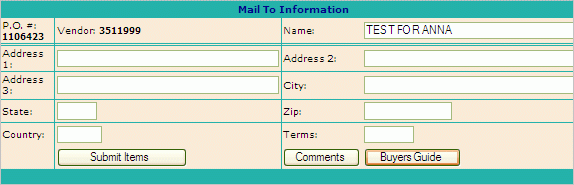
Submit
Mail To: Mail to is the address the invoice will
be sent to. From here you may display and/or modify the
P.O. mailing address.
Modify name and address as required
Modify Terms – Vendor payment discount terms code (see Admin ->
Misc -> Term Search – AP source)
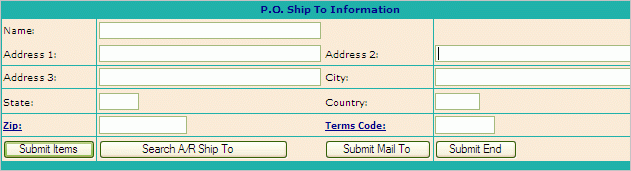
Submit
Ship To: Ship to is the address the Material will
be shipped to - if different from the Mail To. Information
in this field affects this order only.
Input
Items on Purchase Order: From
the PO Header there are two functions available to insert items onto
the PO:

Submit
Items: Function used to Add Items to a Purchase Order.
You may enter up to 10 item codes and quantities and then click
the Refresh button. The screen will be populated with stock item description,
replacement cost, and stock keeping unit of measure. Note: Always
click refresh whenever you add codes or change codes on this screen.

Set Store Cost: Function only available
if user has access. Checking the Set Store Cost box will
cause the Store Inventory File to be updated with the Cost of
the item as listed on the Purchase Order.

Product Code: Catalog code for this
item. You may enter this code directly, or click the Search button
at the bottom of the screen to search and paste product codes.
You may also click on the Source link to add items from a delivery
ticket. In this routine a popup screen will appear, enter your
delivery ticket number and click on search. Items on the DT will
be presented for you to paste to the P.O. screen. This action
links the DT and PO and will provide the warehouse with backorder
info on the P.O. receiving report.
Qty Ord (quantity ordered): Enter
quantity of item.
Cost: Item unit cost.
UM (unit of measure): Line item unit
of measure.
Cust item # (customer item number): Customer’s
P.O. item number if for a customer order. optional
Customer Order # (CO #). optional
Description (product description): Note:
For non-stock items, the description is entered manually and in
order for EDI (electronic data invoicing) to work properly the
description needs to be formatted as follows: Enter the
mfg prefix, one space and then the catalog number (CRSH LB27).
Tag #: Item tag number. optional
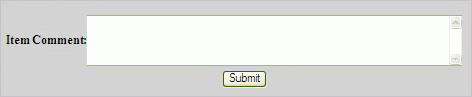
Item Comments: To enter comments
for a line item click the PO Item # link to open the Item Comment
box. optional

Review screen
for errors - click More Rows to add more items, or Submit End
to terminate item entry.
Buyer’s
Guide: Add items to the PO from an IMS
Buyer’s Guide (Routine used by Purchasing)
Vendor: This
is the IMS vendor number (as opposed to the A/P vendor number).
You can click on this link to search the IMS vendor number table
or enter the code directly if you know it.
Edit: A
list of buyer’s guide items are shown for your review. You may
make any changes desired at this point.
Select the
required items: Click the check box beside the items to
add, or click all to add all items on the screen.
Modify: You
may modify Buy Quantity or Cost (modifications here affect this
PO only – it does not change IMS replacement cost).
Add: You
may also add a customer code and a tag number if desired.
Submit More:
Select Submit More if there are more items to add for this
vendor. The items currently on the screen will be added to the
P.O. and the next screen of items will be displayed.
Click Submit
End after all items have been added for this vendor.
SUBMIT END:
Click on 'Submit
End' to end Purchase Order input. If Submit End is clicked
from the PO header and no items have been added to the PO you will
have to edit to the PO to add items.
PONO:
Selecting PONO Quickly
reserves a Purchase Order number. The PONO
function requires only the Written
By be entered. All other data can be entered later; but the
more data entered now, the better. It is suggested that the vendor
number also be entered at this time, although it is not required.
The P.O. number is logged and the order will stay in a ‘Working
Status’ until entry of remaining header and item data has been
completed.
After selecting
'Submit End' (#3c above) the
P.O. will be displayed for Review.
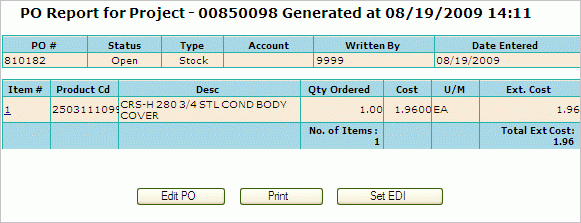
Click on the
Item # link to add for the selected
line item.
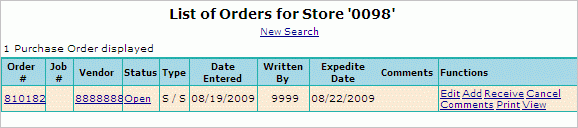
Select the Edit
PO function to be returned to the PO listing page.
Click Print
to print a hard copy of the purchase order.
To have the purchase order transmitted as an
EDI Transaction click the 'Set EDI'
function button, and then 'Ok' to confirm. A message stating
EDI 850 Transaction generated successfully
will be returned if transaction was completed correctly. EDI
PO's to Vendors are periodically, throughout the day, automatically
extracted from MMS. Once you create the EDI 850 transaction
your PO will be transmitted electronically - no further action, by
the writer, is needed.
Changes
MAY BE made to a Purchase Order even after it is finalized and closed.
Please see for
specific instructions.
