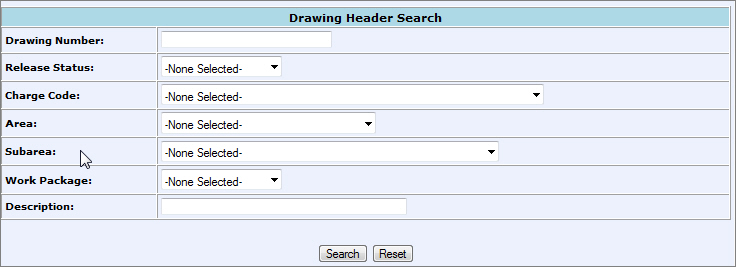
Drawing Header Search
Overview: The Drawing Header holds the organization in CMMS for all details and items on a drawing.
Topics:
4) Add Detail to Drawing Header
6) View Drawing
Process:
1. From the CMMS Menu > Drawings > Drawing Search.
2. Enter in all known search criteria:
Drawing
Number: number associated with the IFC
Drawing or the IFA Drawing
Release Status: none, partial, complete
Charge Code: identifies an account to which a product is to be charged against
Area: number that identifies a locations within a project
Subarea: number that identifies a part of a location within a project
Work Package:
Description: a short description of the drawing
*Partial searches are allowed. Use '%' before the value to find Drawings that contain the value anywhere in the field.
Click Search.
3. A list of search results will populate.

Drawing Number: The number assigned to drawing which is a hyperlink to the items on the drawing.
MTO Status: Material Take-Off Status
Schedule Date: Date material is scheduled to arrive from manufacturer
Description: Short description of drawing.
Functions: Hyperlinks allow you to edit, delete, add detail, and add items to Drawing Header as well as view the drawing.
1. Click on the Edit hyperlink in the "Functions" column on the Drawing Header Search Results screen to edit the Drawing Header.

2. Make any edits to the Drawing Header and click Submit.

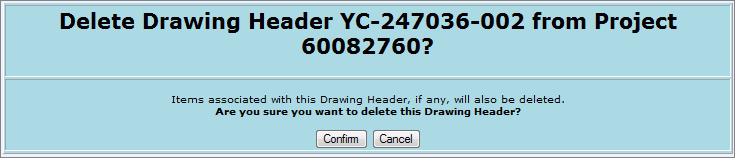
1. Click on the Delete hyperlink in the "Functions" column on the Drawing Header Search Results screen to delete the Drawing Header and all items contained within the drawing.

2. Click Confirm or Cancel.
4) Add Detail to a Drawing Header
1. Click on the Add Detail hyperlink in the "Functions" column on the Drawing Header Search Results screen to add details already created in the project to this specific drawing.

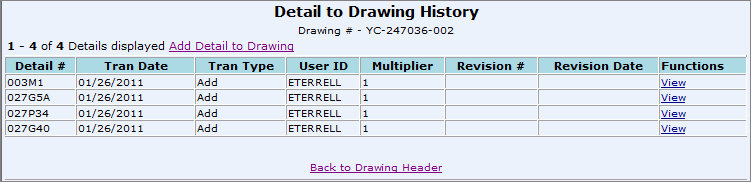
2. All current Details on the Drawing will be visible. Click the Add Detail to Drawing hyperlink.

3. Enter any known search criteria and click search.
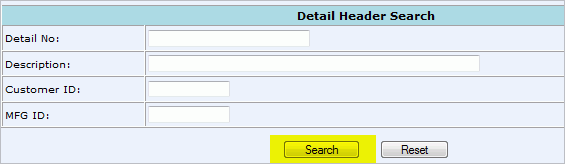
4. Select the check box of one or more details to add to the drawing. (to select all details: click the "All" column title hyperlink)
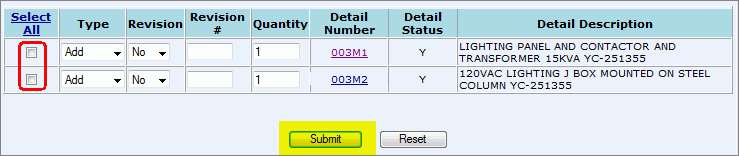
Select All: select checkbox
Type: add or subtract
Revision: yes or no
Revision #: type in revision number
Quantity: the number of time the specific detail appears on the drawing you are adding to the system.
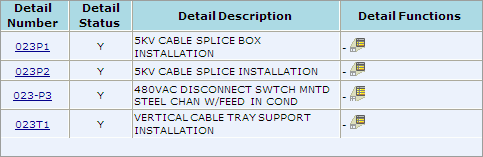
Detail Number: hyperlink allows you to view all items associated with the drawing detail.
Detail Status: Status of Detail; A/Y Active. I/N Inactive
Detail Description: short description of detail
Submit: will submit changes.
Reset: to clear the fields back to the default.
Click Submit to generate.
5. Refresh the screen to see added details.
1. Click on the View icon in the "Functions" column on the Drawing Header Search Results screen to view the drawing.

2. The drawing should pop up in another window.