Process: Purchase Order Item
Overview: A Purchase Order Item is a line item on the Purchase Order that displays the product code, the quantity of material to be ordered, the quantity of material received as well as the cost that Wholesale paid for that item. As each Purchase Order Item is created, it is assigned a sequential number that is used to identify the status of received items on the Purchase Order.
Topics:
3) View Items on Purchase Order
7) View/Add Comments on Purchase Order Item
8) Allocate Purchase Order Item
9) View/Add Schedule Ship Dates on Purchase Order Item
Process:
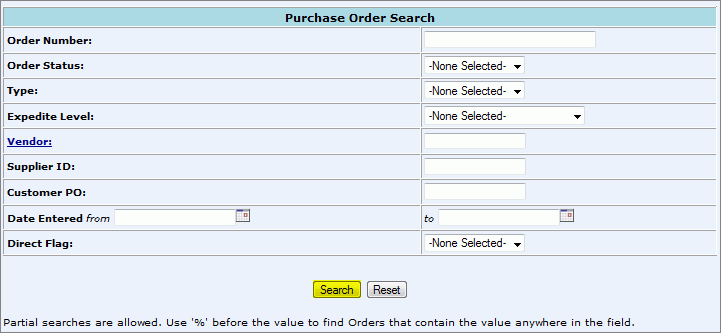
1. From the CMMS Menu > Operations > Purchasing > Purchase Order Search.
2. Enter in all known search criteria:
Order Numbers: CMMS number assigned to order during its creation.
Order Status:
open: material has not been received from the vendor
partial: some of the material has been received
complete: all material on the Purchase Order has been received
cancelled: when a Purchase Order has been created but then cancelled
Type: Stock, Min/Max, Export
Expedite Level: Urgently, Aggressively, To Promise Date, Confirm-Don Not Expedite
Vendor: unique number assigned to vendor
Supplier ID: unique code assigned to supplier
Customer PO: Our customer order number given to us from a specific vendor.
Date Entered: Date span that the Purchase Order was created (one month).
Direct Flag: Yes: to search Direct Purchase Orders only, No: to not include Direct Purchase Orders in search.
*Partial searches are allowed. Use '%' before the value to find Orders that contain the value anywhere in the field.
Click Search.
3. A list of search results will populate.
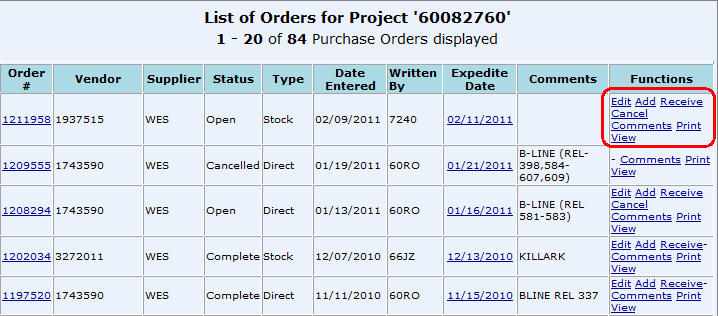
Order #: CMMS number assigned to order during its creation which is a hyperlink to all line items on the order.
Vendor: unique number assigned to vendor.
Supplier: unique code assigned to supplier.
Status: current status of Purchase Order: open, partial, complete, or cancelled.
Type: Order type of Stock or Direct.
Date Entered: Date the Purchase Order was created.
Written By: Salesman Number
Expedite Date: Date the Purchase Order to be expedited if it has not yet been received. Hyperlink allows user to update this date.
Comments: Internal comments.
Functions: Available functions will depend on the Purchase Order Status. Hyperlinks allow user to edit, add item, receive shipments, cancel order, leave comments, print, and view order.
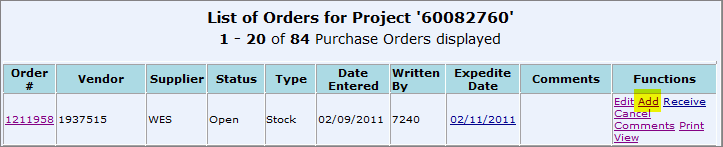
1. Click on the Add hyperlink in the "Functions" column on the List of Orders for Project screen to add an item to the Purchase Order.
2. See: Step 2-5 of Process: New Purchase Order
3) View Items on Purchase Order
1. Select the Order Number hyperlink from the "Order Number" column on the List of Orders for Project screen.

2. A list of all items on the Purchase Order will appear:
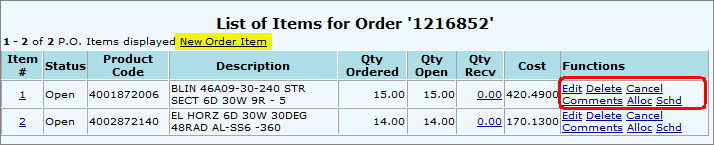
Item #: specific number assigned to Purchase Order item, hyperlink to edit the item.
Status: current status of Purchase Order: open, partial, complete, or cancelled.
Product Code: unique number that identifies material in the project product catalog.
Description: a short description of the item.
Qty Ordered: number of items ordered.
Qty Open: number of items left to be received.
Qty Recv: number of ordered items received.
Cost: the dollar amount the item cost Wholesale Electric to buy.
Functions: available functions will depend on the Purchase Order Item Status, hyperlinks allow user to edit, delete, cancel, view/add comments, allocate order items, and view scheduled ship dates.
1. Find the item that you want to edit from the "List of Items" screen. Click Edit under the "Functions" column.
*You can also access the edit screen by clicking on the Item number under the "Item #" column.

2. Make any changes to the Purchase Order Item:
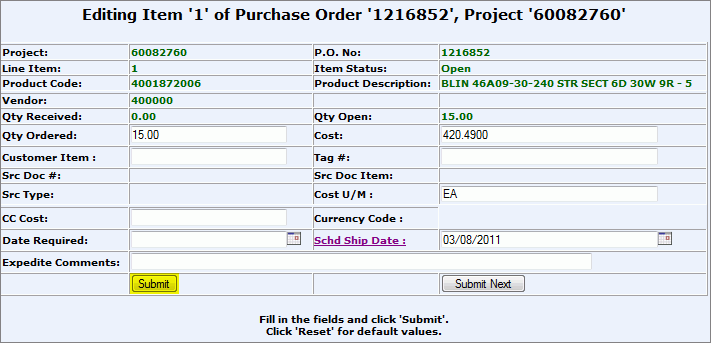
Qty Ordered: The amount (quantity) of a specific item ordered.
Cost: The total dollar amount that material is to be purchased for.
Customer Item: Customer's Purchase Order/Item Number.
Tag #: Customer defined identification label.
Src Doc#: The customer order (Delivery Ticket/Drawing) that the item is being purchased for. (Allocate)
Src Doc Item: Source Document Item: The line item number from the Delivery Ticket/Drawing.
Scr Type: Source Type: Stock, Direct, etc.
Cost U/M: The dollar amount per unit of measurement. (ex: each, feet, etc.)
CC Cost: Currency Code Cost
Currency Code: Type of currency used (ex: USD, EUR)
Date Required: Date material is required.
Schd Ship Date: The overall scheduled date. Hyperlink allows user to view delivery dates on a specific quantity of the item ordered.
Expedite Comments: Internal notes on communication with vendor/manufacturer on delivery status.
3.
Click:
Submit: to save changes and take the user back to the "List of Items for Order" screen.
Submit Next: to save changes and take the user to the next item on the Purchase Order "Edit" screen.
1. Find the item that you want to delete (completely remove from order) from the "List of Items" screen. Click Delete under the "Functions" column.

2. Click Confirm or Cancel.

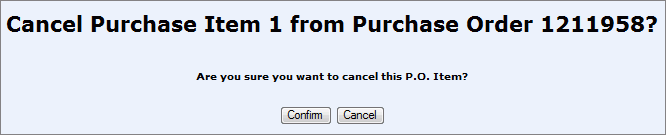
1. Find the item that you want to cancel from the "List of Items" screen. Click Cancel under the "Functions" column.

2. Click Confirm or Cancel.
7) View/Add Comments to Purchase Order Item
1. Find the item that you want to view/add comments to from the "List of Items" screen. Click Comments under the "Functions" column.

2. View or add any Purchase Order Item Comments.
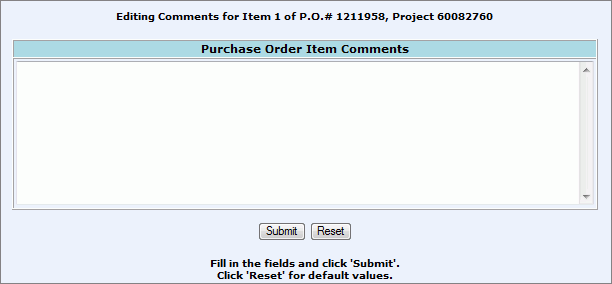
Click Submit or Reset.
8) Allocate Purchase Order Item
1. Find the item that you want to Allocate from the "List of Items" screen. Click Alloc under the "Functions" column.

2. See: Allocate Drawing Items previously added to a Purchase Order.
9) View/Add Schedule Ship Dates on Purchase Order Item
1. Find the item that you want to view or add to the scheduled delivery dates on the "List of Items" screen. Click Schd under the Functions column.

2. Displayed will the be scheduled delivery dates of a specific quantity of the item from the manufacturer.

To add a date click the New Schedule Date hyperlink.
3. Enter the Scheduled Ship Date and the Quantity Expected in that shipment.

Click Submit.
*Data entered here will print on the PO Expedite Report and PO Cash Flow Report.
4. Displayed will be the list of scheduled ship dates and the option to delete the ship date.

To return to the Purchase Order click the PO number hyperlink (highlighted in blue).
To return to the Item Edit screen, click the Item number hyperlink (highlighted in purple).