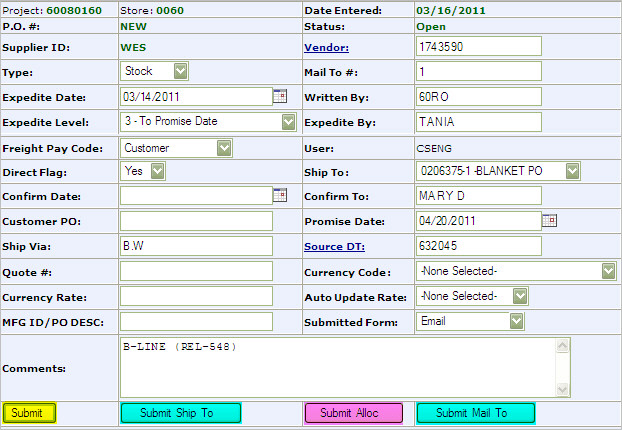
To create a new Purchase Order (Stock, MinMax, or Export) in CMMS, go to Operations > Purchasing > New Purchase Order.
Enter Data: {Asterisk (*) indicates a required field}
*Vendor: Vendor Number: Use link to search for the correct accounts payable vendor number. When pasted to the Purchase Order the Mail To # will also be pasted. Note that Vendor Number designates the payment remit to address and Mail To # identifies the purchase order mailing address.
Type: Min/Max, Stock, Export
*Mail To #: This is the address for which this order will be shipped to. Automatically entered if Vendor # is pasted OR click the Submit Mail To button (highlighted in blue) to change the address.
*Expedite Date: Date to expedited the order if it has not yet been received.
*Written By: Inside Salesman Id Number
*Expedite Level: How quickly do you need to procure the material? Classification allows for report generation by material need. Select expedite level from the drop down menu: Urgently, Aggressively, To Promise Date or Confirm-Do Not Expedite.
Expedite By: ID of the person responsible for expediting this order.
*Freight Pay Code: Who is paying for the freight on this order. Select from the drop down; Customer (us) or Vendor.
Direct Flag: Is the Purchase Order a Direct Order (shipped directly to client)?: Yes/No.
*Ship To: Select from the drop-down menu OR click the Submit Ship To button (highlighted in blue) to add or change the address.
*Confirm Date: The date the order was confirmed to the manufacturer.
Confirm To: Name of person who confirmed the order.
Customer PO: Our customers order number.
*Promise Date: Date material has been promised to be delivered.
Ship Via: Designate how you want the order shipped (ex. UPS, DHL, etc.).
Source DT: If material on this Purchase Order is being ordered specifically for a Delivery Ticket enter the Ticket information here.
Quote #: Manufacturer's quote number if available.
Currency Code: Select the currency code of the transaction (ex: USD, EUR) if it is different from the company default.
Currency Rate: If a currency code is entered the rate will be automatically inputted when the header is refreshed.
Auto Update Rate: Change flag to Yes to have the Currency Rate updated automatically after the purchase order is received.
MFG ID/PO DESC: Manufacturer Identification - prints on Job Control reports.
*Submitted Form: Method that the purchase order is submitted to the Vendor: Email, Fax, Website, Verbal, Hand, Pending or EDI.
Comments:
Notate any internal comments needed (they do not print on the
Purchase Order).
 Add
items
Add
items
 Modify customer
Ship To address
Modify customer
Ship To address
 Select
Drawing Items to add to PO
Select
Drawing Items to add to PO
 Modify Vendor PO
Mailing Address
Modify Vendor PO
Mailing Address