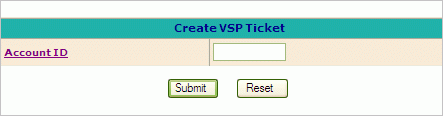
Order Entry by Customer Catalog Codes (VSP). A VSP Ticket is an order which is generate for a customer that has a Customer Catalog (Inventory) attached to the AR Account.
VSP Type Tickets
allow for Non-Customer Catalog group and trade service items to be inputted
on the ticket as well as customer items from the Customer Catalog.
To create a VSP Ticket go to Operations ->
Order Entry -> and click on the Create
VSP Ticket link.
Step
1: Selecting the Account ID link above will open an AR Master Search Screen.
Search for the AR Account # and then paste from the search results. Pasting
the AR Account # will paste the AR Account #, Customer Catalog ID and
the associated Price ID (if applicable) to the newly created VSP Ticket.
Step 2: Complete the VSP Ticket Header. The following fields make up the VSP Header
Order # - Customer Order number
Req # - Customer Requisition number
Written by: Salesman # (required field)
Shorts Code
Date Requested (Req) (required field)
Expedite Date
Credit Card Type
Check/CC #
Currency Code
CC Exp Date
Currency Multiplier
Currency Flag
Remarks
For detailed information on any of these header fields please refer to the documentation for Creating a New Sales Order.
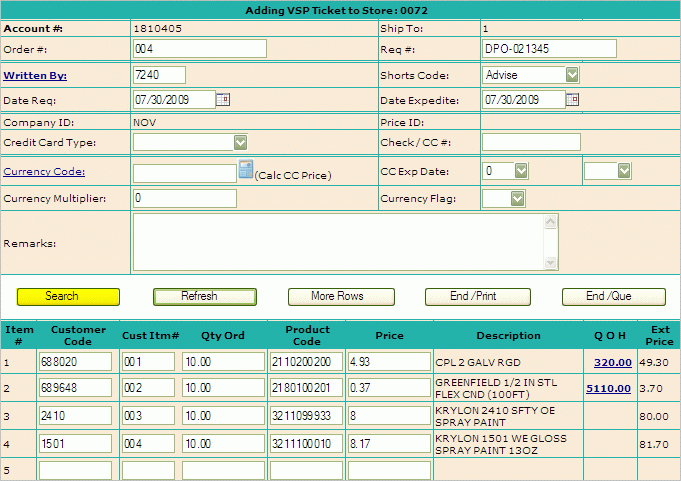
Step 3: Enter
items on ticket.
 Items on a VSP Type Ticket
MUST be entered using the Search function
(highlighted above).
Items on a VSP Type Ticket
MUST be entered using the Search function
(highlighted above).
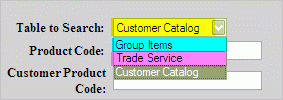
To enter items click the Search button above to open the Product Code Search screen. Notice that the default table to search for product is the Customer Catalog. Product may be added to a VSP Ticket from the Customer Catalog, Group Inventory or from Trade Service.
Customer
Catalog Add: When searching for material, the Customer Catalog
will be accessed by default. The following search screen is
provided to find Customer Catalog product.
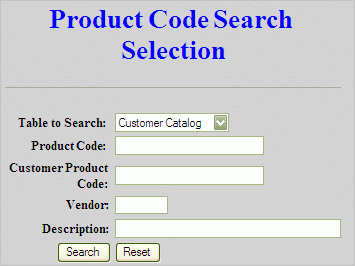
Items from the Customer Catalog may be searched by any of the
following criteria:
Product Code
Customer Product Code
Vendor
(product) Description
Group
Inventory Add: Select Group Items from the 'Table to Search'
drop down.
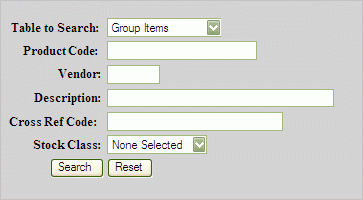
Items must exist in the Group catalog either as a Stock or Non-Stock
major coded item.
Items from the Group Inventory may be
searched by any of the following criteria:
Product Code
Vendor
(product) Description
Cross Reference Code
Stock Class
Trade
Service Add: Select Trade Service from the 'Table to Search'
drop down.

Items from Trade Service may be searched by any of the following criteria:
UPC Code
Catalog #
MFR Prefix
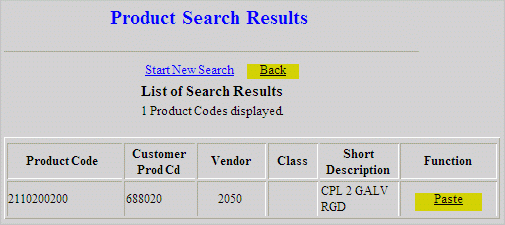
When your search results come up, select Paste to add the item to your VSP
Ticket; then select Back to return
to the Product Code Search Selection screen to search for the next item.
Repeat until all items have been added.
Enter the Quantity to order and the Customer Item
# (if appropriate) on the input page.

Step 4: Finish Input
Click Refresh to fill in Customer Code information,item description, quantity
on hand and pricing.
If adding more then 20 items to order, enter all data for first 20 items, click refresh and then select More Rows to input items 21-40, etc.
Step
5: End VSP Ticket
When all input is complete select either End/Print or End/Que to finish
End/Print - Ends the ticket, provides user with a DT number and immediately sends the ticket to the printer.
End/Que - Ends the ticket, provides the user with a DT number and sends the ticket to the print Que to be printer later.
For additional information on creating a DT please click here.
 A VSP Type Ticket may also
be generated using a Quote. When creating a quote be sure to change
the ticket type from Normal to VSP. For detailed information on
creating a Quote, please click here.
A VSP Type Ticket may also
be generated using a Quote. When creating a quote be sure to change
the ticket type from Normal to VSP. For detailed information on
creating a Quote, please click here.