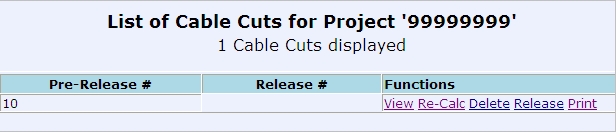
STEP 2 of the Cable Management Routine is to CREATE A RELEASE.
Before proceeding with this step ensure that Step 1, Creating a Pre-Release, has been accomplished. For documentation on creating a Pre Release, please click here.
Once the items on the Pre Release are put into a Held status the function Release will be available.
To Release the Cable click on the Release function to open the Release Header:

A Release created from the Pre-Release function will always have a Release Type = Drawing Release because the release is being created against a drawing.
The only required field for the Release Header is the AR ACCOUNT. All other fields are optional.
Click Submit after all desired fields are entered.
Verify that you want to create a release. Click ok to generate.
A popup window will display alerting user to the Release # that was created
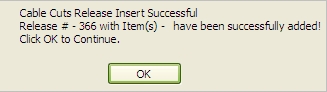
Click OK and the user will next be presented with a list of Material Release Headers for the current project.

Select Wizard D
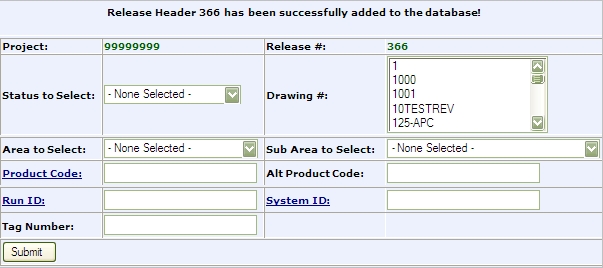
Submit
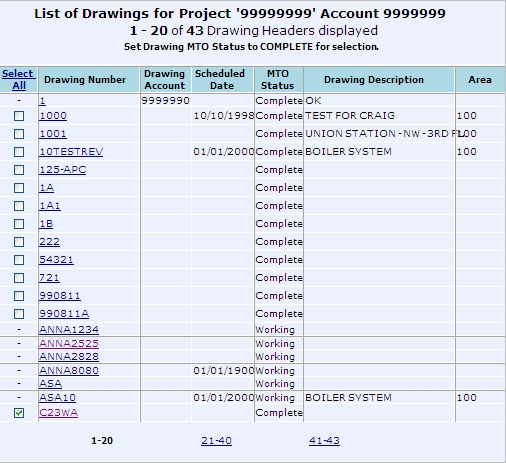
Select Drawing and then click Submit - this action will create the Release #.
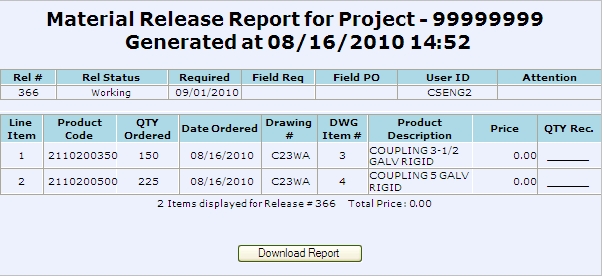
STEP 3 - VERIFY AND AUTHORIZE RELEASE
Once the Release is created you must change the Status of the Release from Working to Complete.
(While Release is in Complete Status you can still make changes if needed.)
At the main MMS menu go to Releasing -> Material Release and click on -> Material Release Search. The List of Release Headers returned will list Release Headers matching search criteria entered in reverse numerical order by Release Number.
Click Edit in functions column for Release Header you would like to Edit. The Edit Release Header Contains general information on a Material Release such as Entry Date, a Field Requisition or Field Purchase Order Number, Date Required, and Expedite Date. Some of these fields can be used as selection criteria during the material release process and to generate job status reports. Each Material Release is assigned a sequential number that is used to track the Material Release and acts as a key to access information on the Material Release Status. Screen will appear.
From the Status drop down box select Complete. At this time, all other fields will remain unchanged.
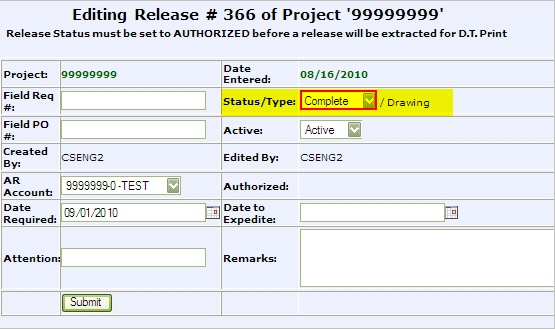
Click Submit to save.
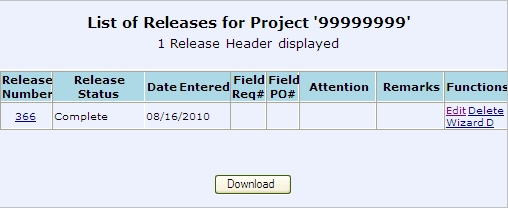
Print and Review the Release.
Once you have printed and reviewed you Material Release change the status of the Release Header from Complete to Authorized - following the same process above to change to Complete.
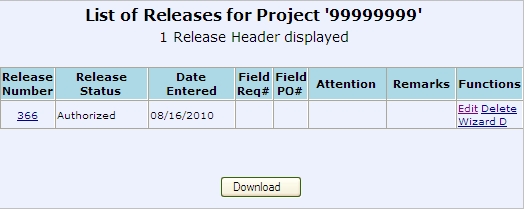
The Final step in Cable Management is to Create a DT from the Release. Step 4.